
Change the screen layout
-
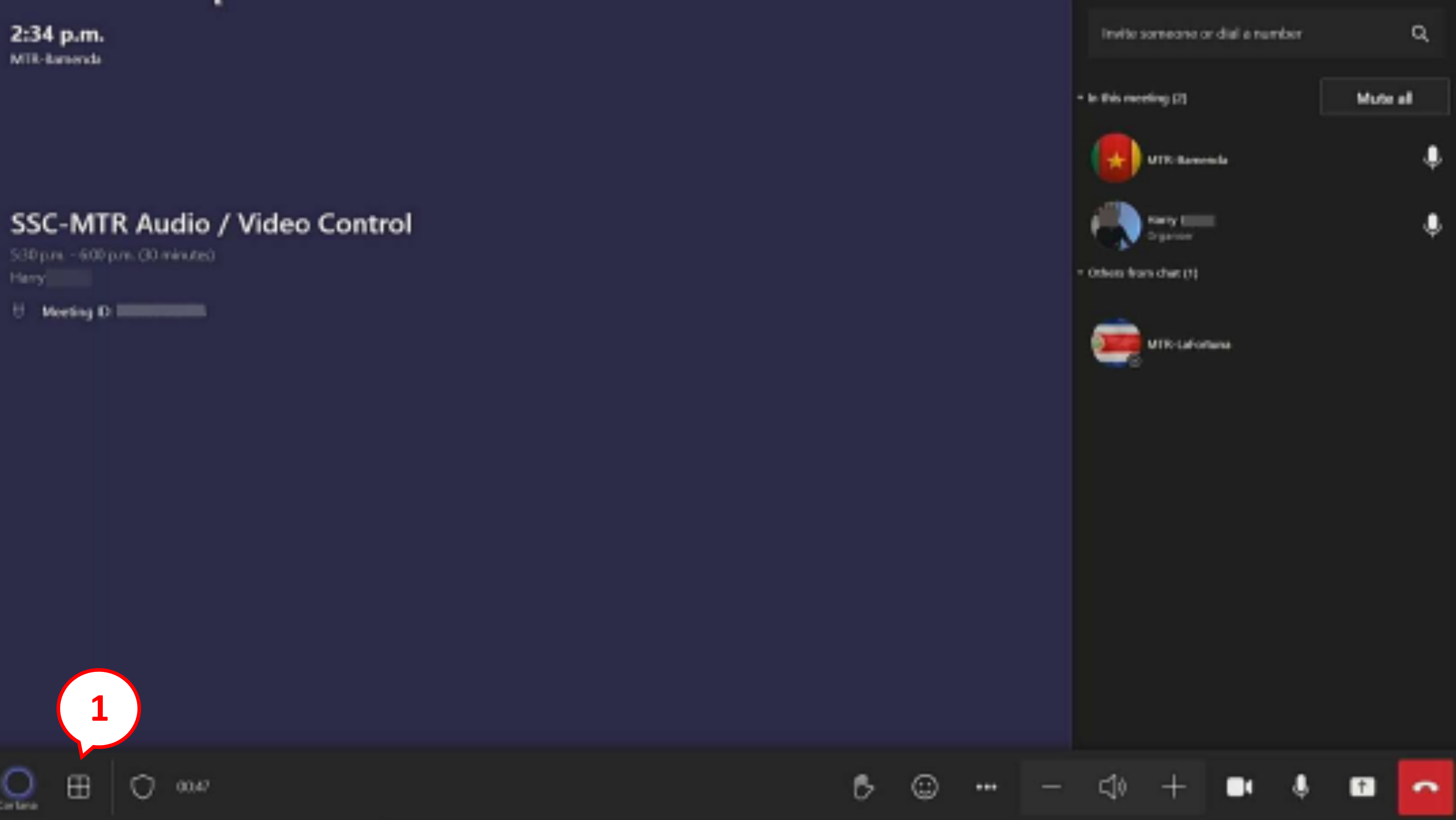
Click the Layout button (1) located on the bottom left side of the utility bar on the touch panel device in the room. -
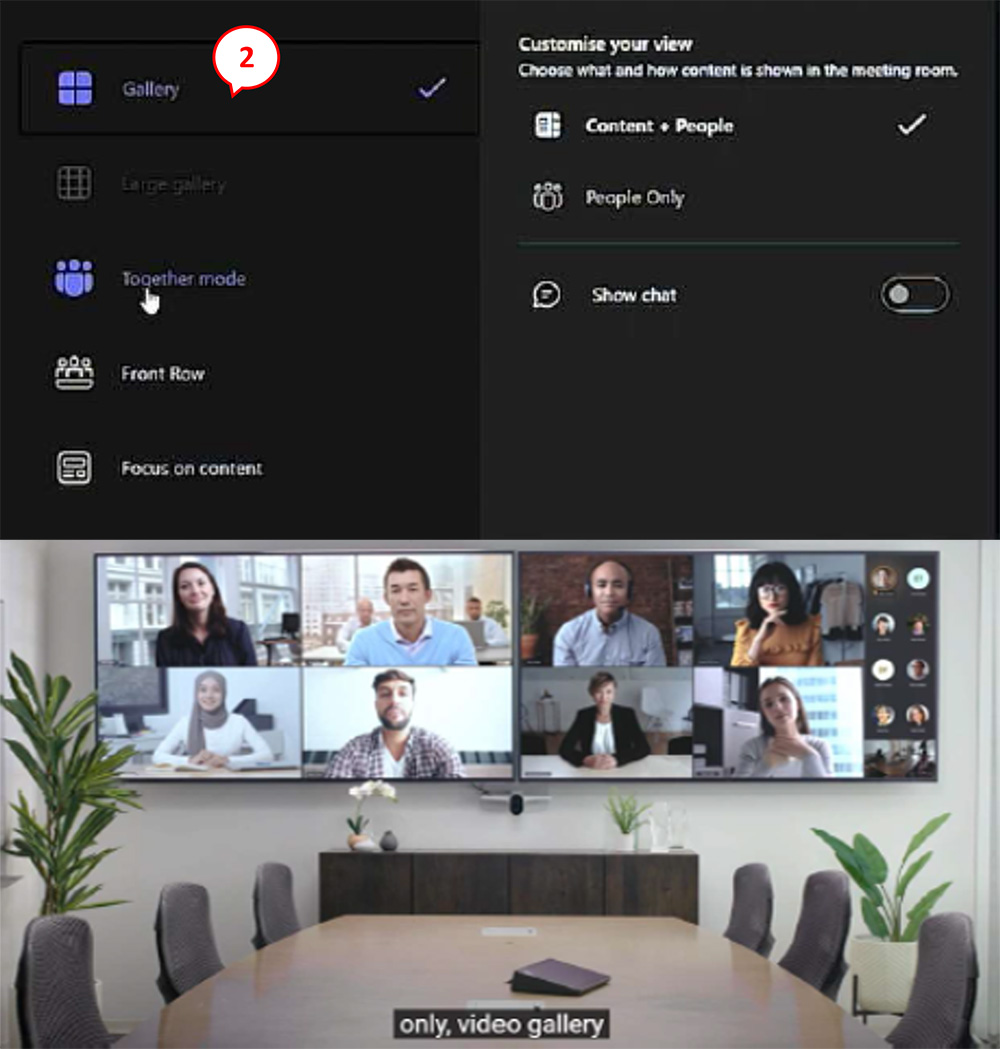
Select your preferred layout. The default layout is Gallery (2), but various layouts are available. -
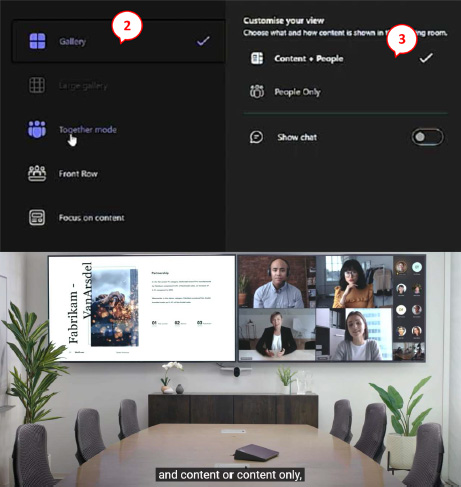
Combining your preferred display mode, for example Gallery (2), with the Content + People (3) option, will display both the shared content and the participants at the same time. . -
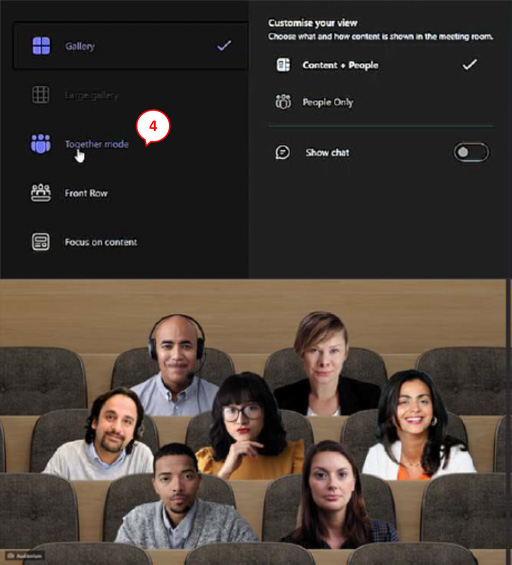
Together mode (4) only works with 3 or more meeting participants. -
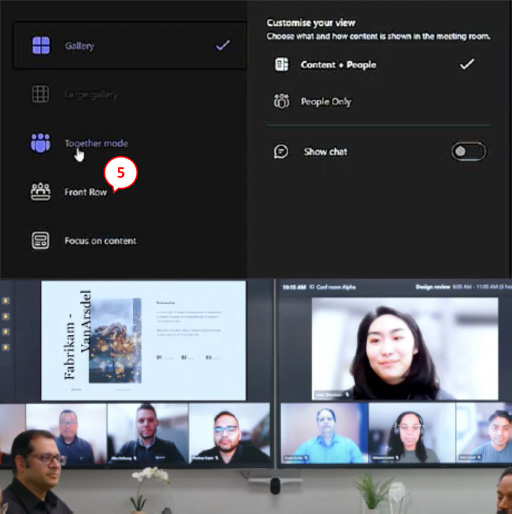
Front Row mode (5) places all videos along the bottom of the screen. -
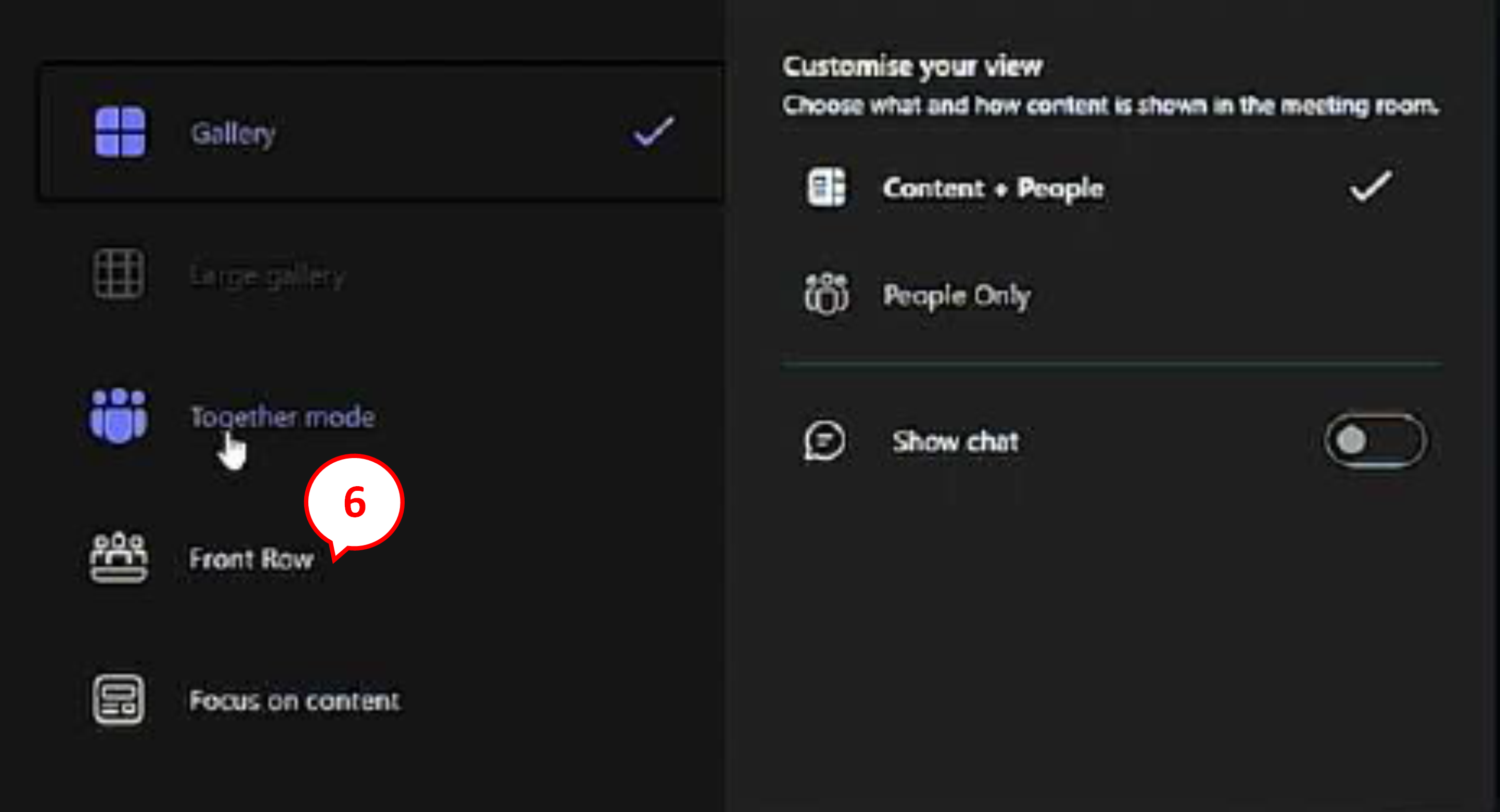
Focus on content (6) mode removes all video and only displays the shared content on the screen.
More help
- Microsoft Teams Rooms on GCXchange
- Contact your department's service desk for real-time help